Using Transformations in OpenRefine
Transforming data can also be a quick way to correct improperly formatted data all at once. OpenRefine includes a set of common transformations that you can use, and also allows for custom transformations. The common transformations include trimming leading and trailing whitespace, changing the case of text, and even changing the data type.
Practice
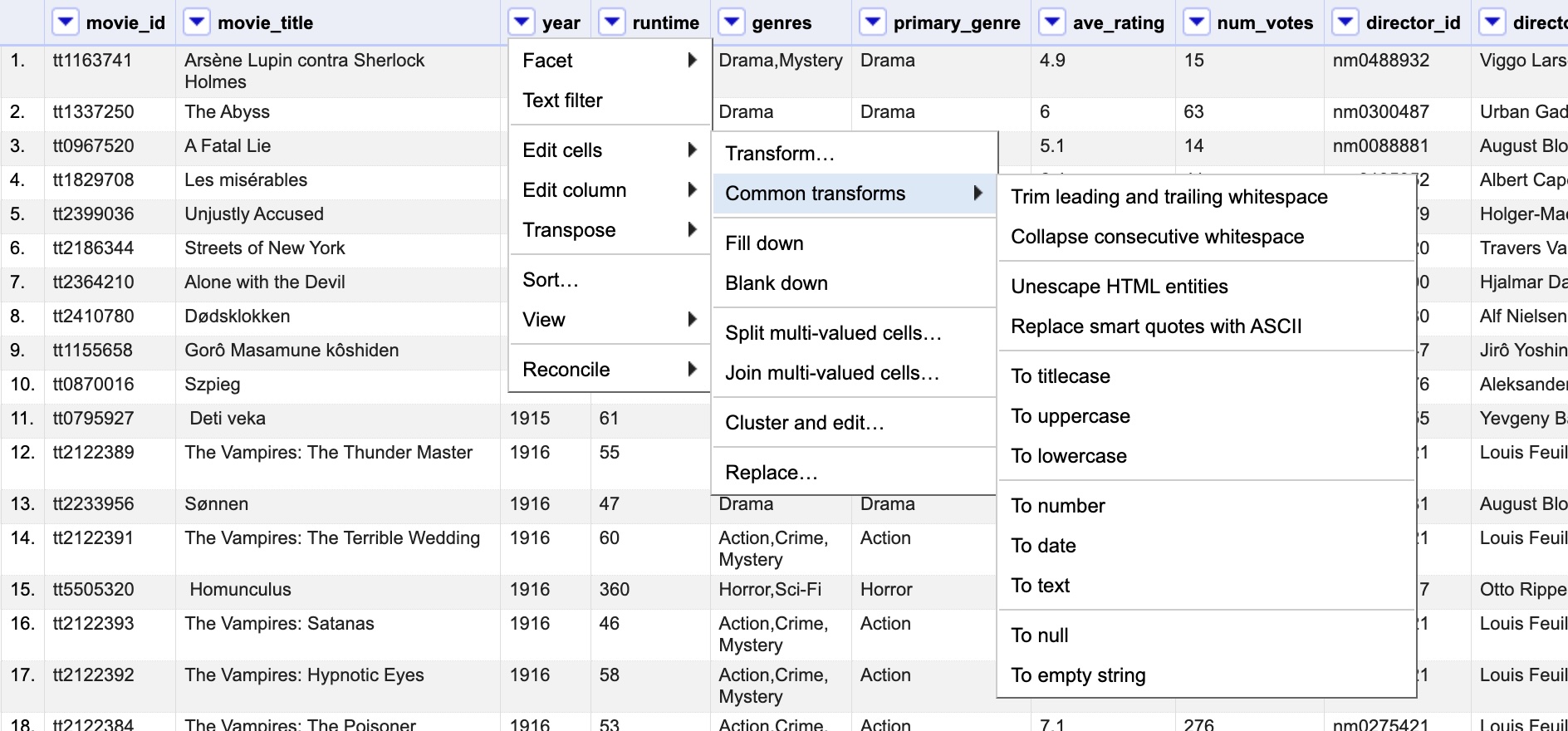
Let's say that we're interested in the distribution of movie releases over years. Recall that numeric facets will produce graphs - specifically, histograms. Hover over the arrow next to the year title, navigate to Facet and then to Numeric facet. What happens?
Solution
You will not be able to use a numeric facet on the year column. While the facet command will produce a facet box in the left hand margin, it will be empty. This is because the values in year are not formatted as numbers.
To fix this problem, you will need to transform the year values into numbers. To do this, follow the procedure: Facet to Common transforms to To number. When you've transformed the values into numbers, the numeric facet you made earlier should auto-populate. You'll also notice that the values in the year column are now green.
Trimming leading and trailing whitespace
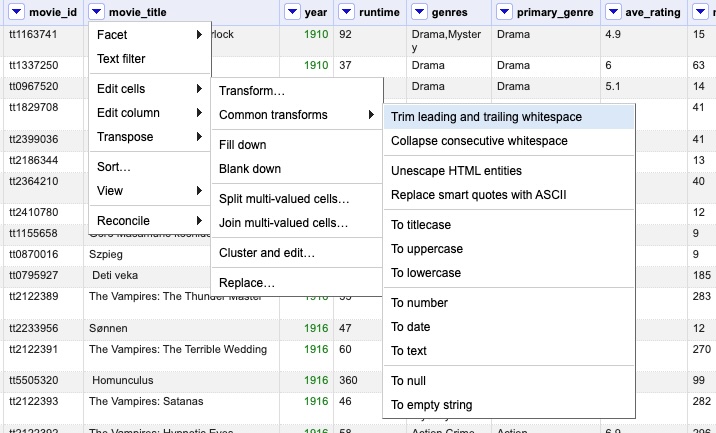
The transformations function can also be used to trim leading and trailing whitespaces. This is another one of the easy common transformations OpenRefine includes. Try it out now on the movie_title column. You should get a pop-up message confirming that you've changed 66 rows.
Other transformations
We can also use transformations to convert and clean data easily. For example, we can use transformations to turn our sets of writers’ IDs and names into clear lists of individual items. To do so, we will first need to remove the square brackets and quotation marks.
This task will require using a custom transformation. Start by clicking the down arrow beside the writer_names variable title. Choose Edit cells and then Transform. This will open a pop up window for custom transformation.
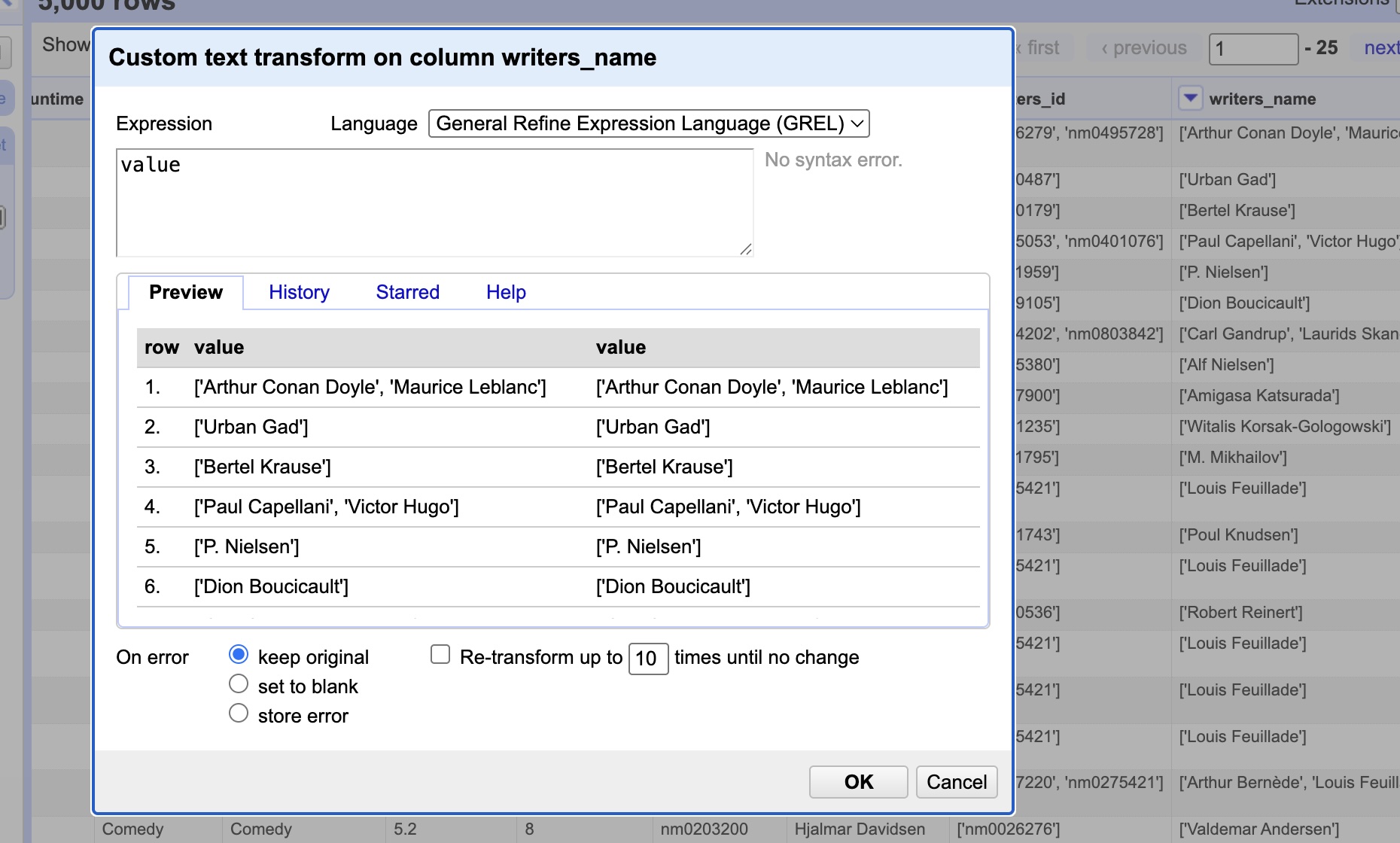
This window contains a text box, where you can type a General Refine Expression Language (GREL) and use it to transform your data.
Our first step will be to remove all the square brackets. For this, type value.replace("[","") and click ok. This GREL expression is telling OpenRefine to take every "[" and replace it with "" (nothing).
Practice
Use this same technique to remove the other square brackets (]) and the quotation marks (').
Solution
You should use the following GREL expressions:
- value.replace("]","")
- value.replace("'","")
After completing these two transformation, each row of writers' names should be a clean list, without any square brackets or quotation marks.