Filtering and Sorting in OpenRefine
OpenRefine includes a set of functions that let you sort, filter, and exclude data. These tools allow to focus in on a subset of your data.
Filtering
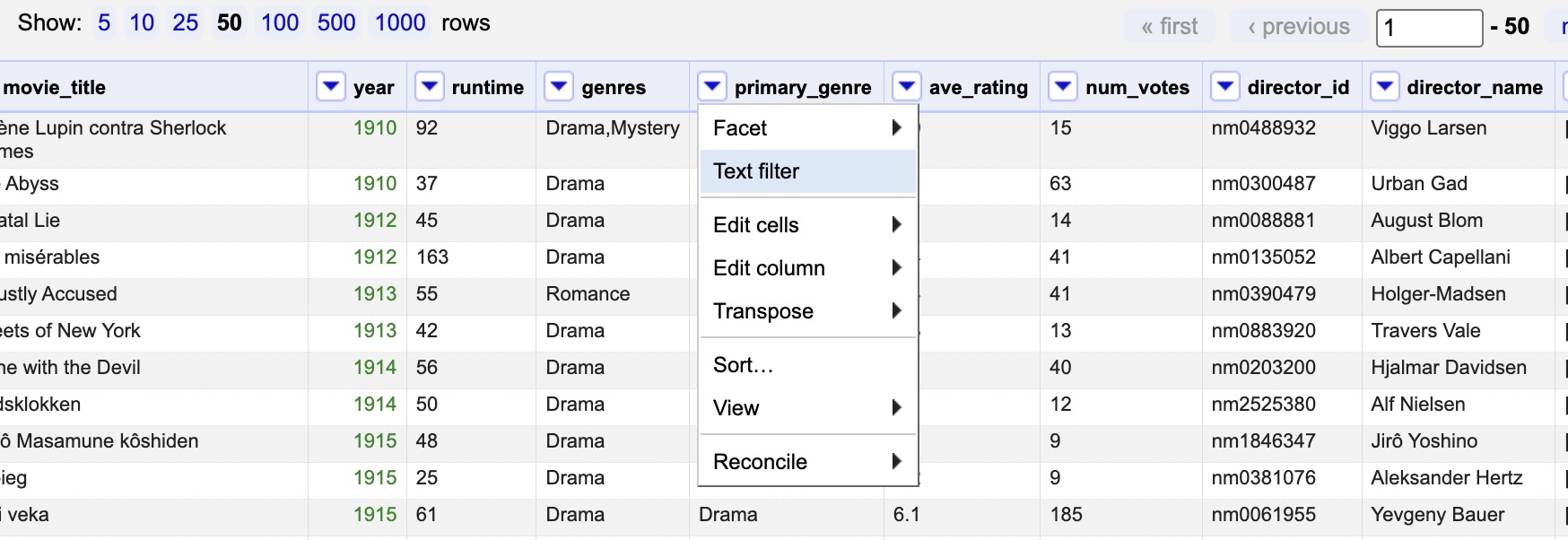
Filtering in OpenRefine is a simple process. You can access the Text filter function by clicking the down arrow beside the variable title.
Practice
Try filtering the primary_genre column. Select the Text filter option. You should see a filter box appear in the left hand marigin of your window. Start by typing "fa". What happens?
Solution
The text filter works in real time as you type. Once you've typed "fa" you should see your data restricted to only the family and fantasy genres. You can further narrow it down by typing more.
Continue typing ntasy (so that you now have "fantasy"). You should now only have 32 entries on your browser window. You have succesfully filtered your data by fantasy genre!
Now, remove the filter before moving on to the next operations.
How is filtering different from faceting?
These two operations look very similar, but have slightly different functions. Simply put, faceting will give you an overview of all the data selected, while filtering will select out a subset of the data to work on.
Including and excluding
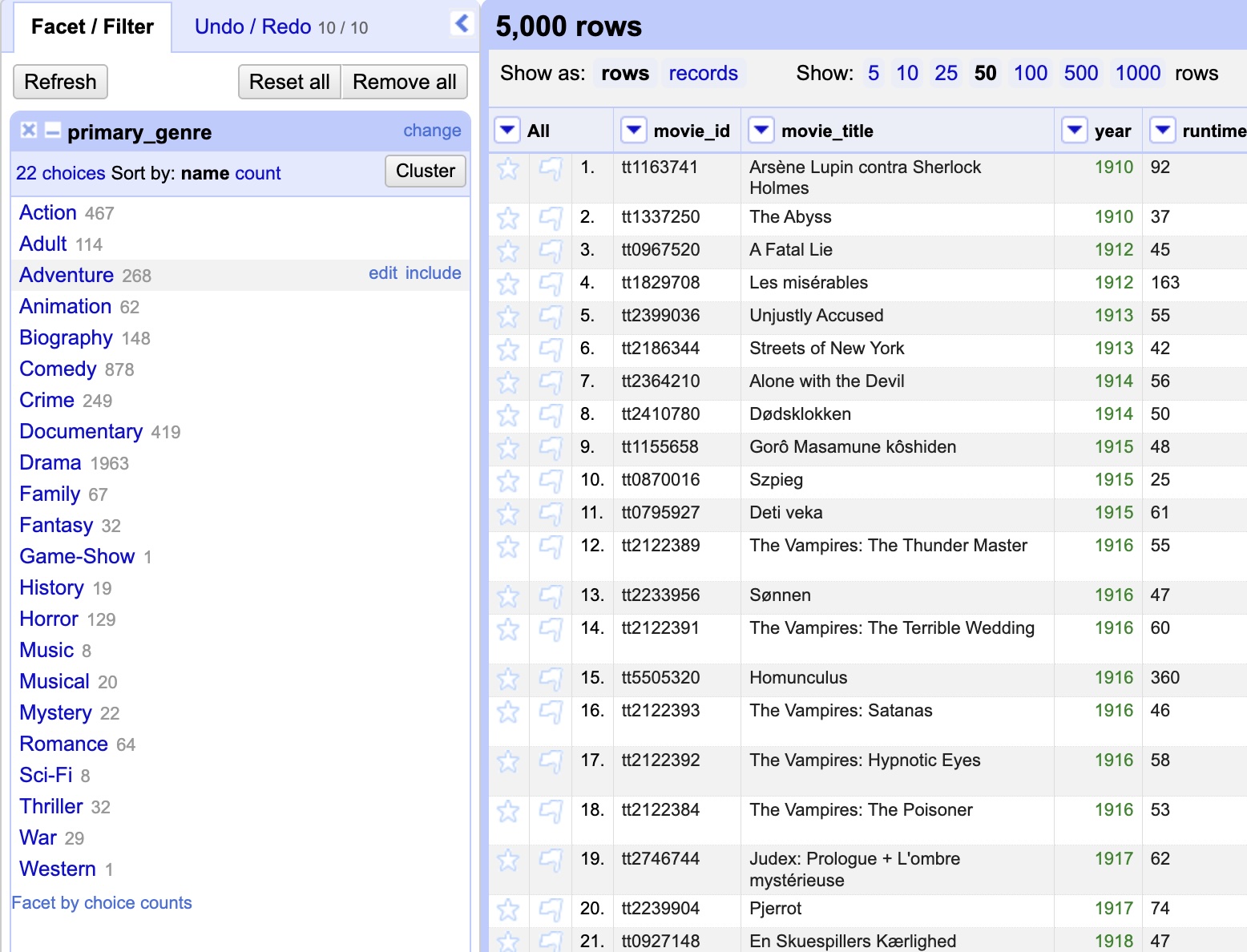
Excluding variable values is another fast way to subset your data. You can do this by hovering your cursor over an entry in a facet. When you do, options to edit and include or exclude will appear.
Practice
Choose any one of the entries in the primary_genre text facet. Hover over it, and click on include when it appears.
You should see that your data is now restricted to just that one genre. Include a second genre - what happens now?
Solution
When you include a second genre, your data will be filtered down to those two genres. The first will not be unselected.
There are two options to clearing the filter put on by including genres. First, you can click on exclude beside the entry in the text facet. Try doing this to one of the entries you included earlier.
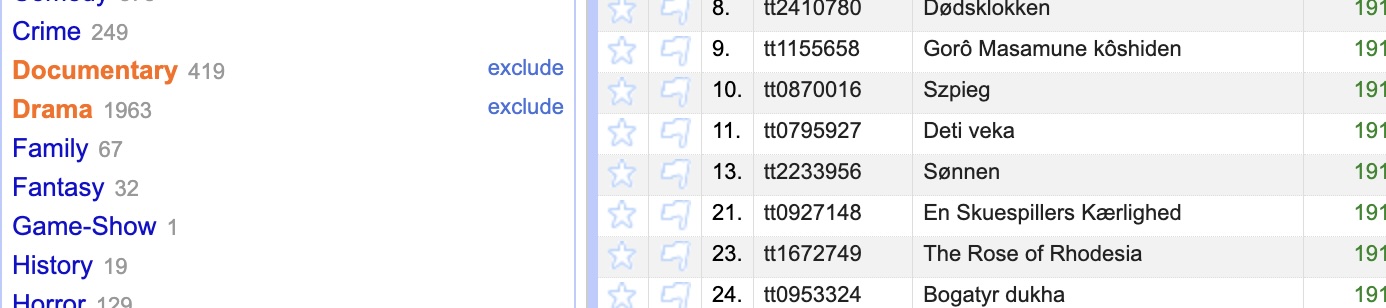
Alternatively, you can click on the reset button in the top right hand corner of the facet box. Hitting this button will reset any and all inclusions you've made.
Sorting
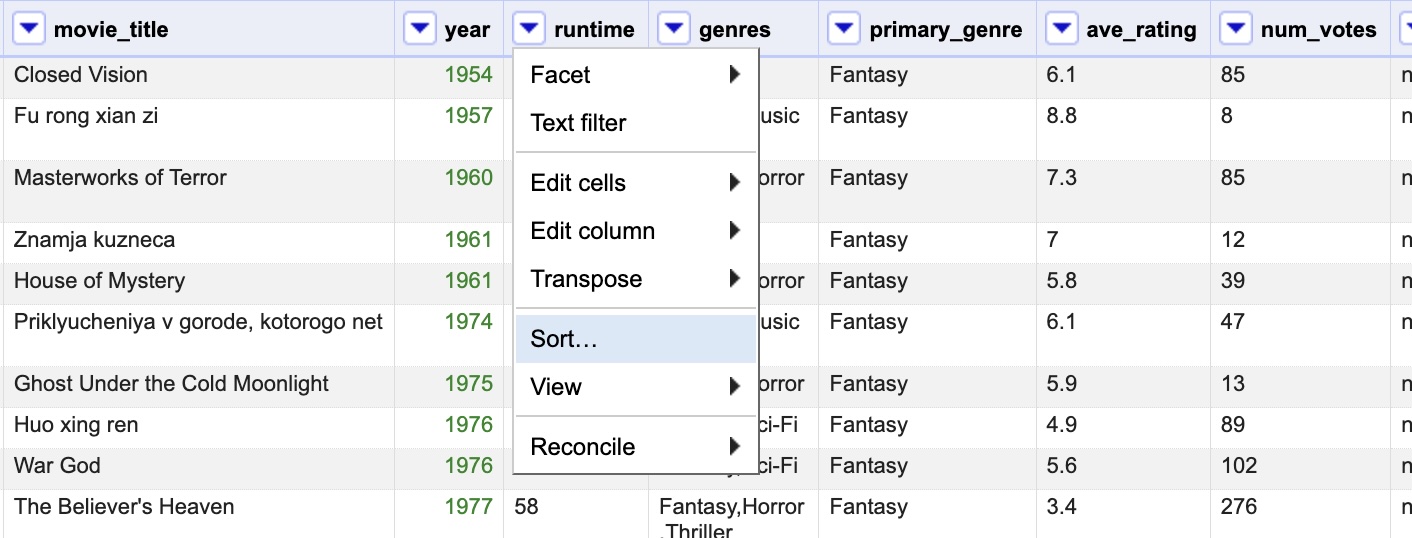
Like filtering, sorting data is done through the column's dropdown menu (found by clicking the down arrow beside the title).
When you click on Sort... a pop up window will appear. In that window, you will get the choice to sory by text, numbers, dates, or booleans (true or false). You will also be able to choose where the blanks and errors should go in the sorted results.
Let's try sorting by text and by numbers.
First, sort primary_genre by text. When you select text in the sorting pop up window, you will have the option of whether to sort from a to z, or z to a. Leave this at the default of a to z.
Second, sort run_time by number. Sort it from largest first. You'll also see an option to sort by this column alone. Leave it blank in this case, in order to sort the data by both run_time and primary_genre. You should now see the longest Action movie at the top of your table (The Tiger and the Female, at 180 minutes).
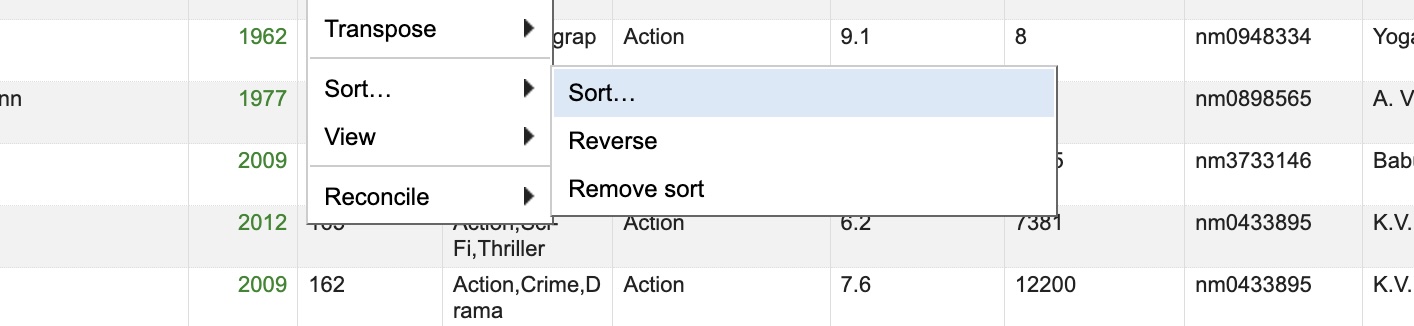
When you return to a column that you have already sorted, your options under Sort... will be slightly different. Now, you will see an option to Sort... (which will allow you to change your sorting options), Reverse (which will reverse the direction of the preexisting sort) , and Remove sort (this one is pretty self-explanatory).
Practice
Let's say we want to find out what the shortest movie in the dataset it, irrespective of genre.
To do this, first navigate to the dropdown menu for run_time and select Sort... and then Reverse. Next, remove the sort on primary_genre.
What is the shortest movie?
Solution
To remove the sort on primary_genre, you will need to navigate to the column dropdown menu, then to Sort..., and then finally to select Remove sort.
When you've done all that, you should find that the drama film Szpieg is the shortest movie, at only 25 minutes.