Saving your Work in OpenRefine
Now that we've done all this work cleaning our data, we need to save it. As we saw when we learned about the Undo/Redo tab, OpenRefine keeps a log of every change we make to the dataset. This log is saved as a JSON (JavaScript Object Notation) file, and can be exported and applied to other files/projects.
Exporting and saving your script
To export your script, you need to navigate to the Undo/Redo section of the tab in the left hand margin. Once there, click on Extract.... That will prompt a pop up window with the script of all changes made to the data. From there, click Export, and your script should automatically download as a JSON.
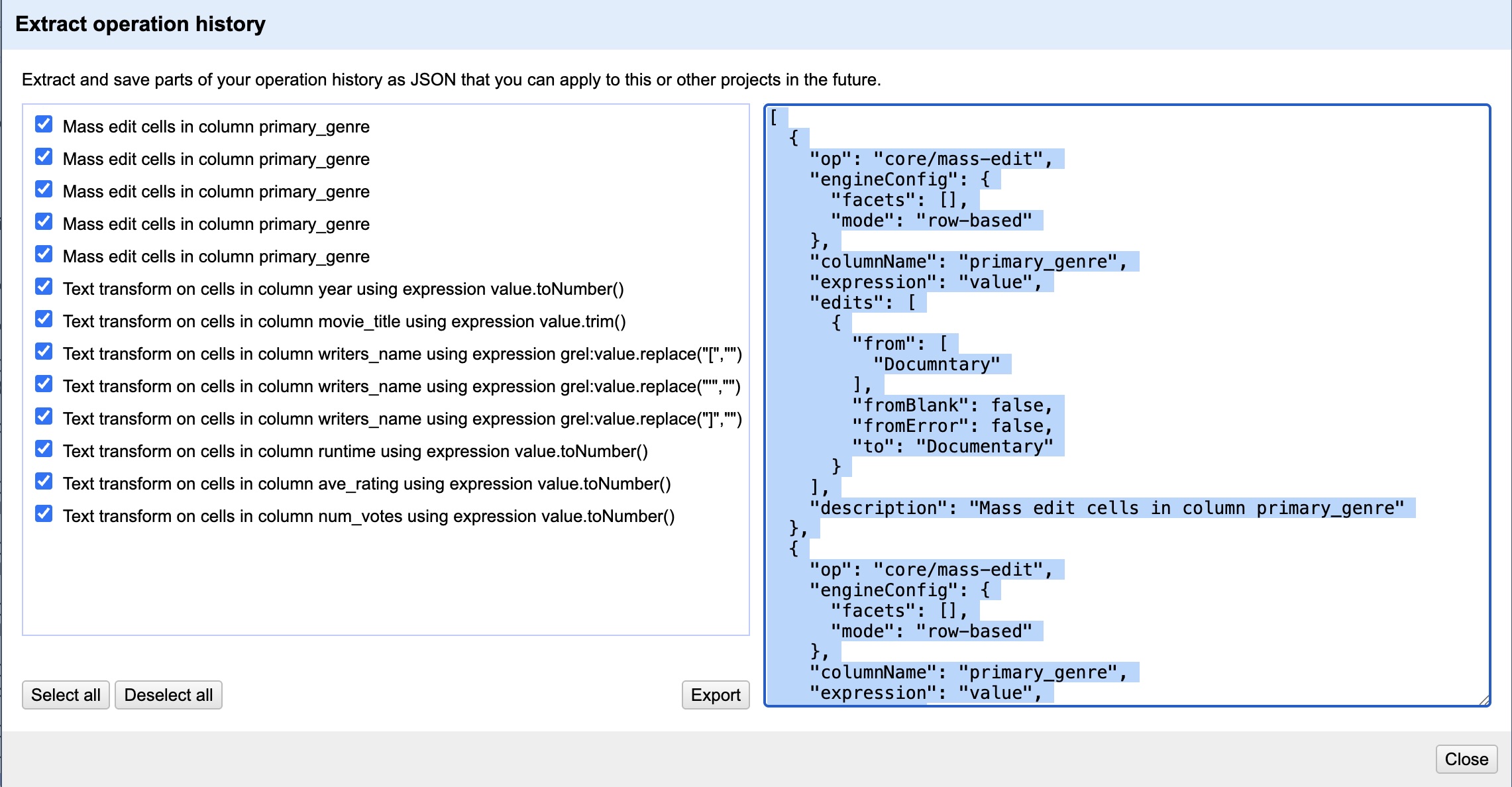
If you were starting a new project, and wanted to use this same script (or any other that you had exported and saved), you would simply click on Apply... instead of Extract.... You would then get a pop up window with the option to either copy and paste a script or upload a script file.
Exporting and saving your data
OpenRefine allows you to save your data as a new file (leaving your original data untouched) by exporting. To do so, you will need to navigate to the Export button in the top right hand corner of your browser window.
From there, you will be able to select the format in which you would like your data to be exported. There are several format options to choose from, but I would genreally recommend choosing CSV (comma-separated values).
Depending on your browser settings, your new file should automatically download. OpenRefine will name it after your project.
You also have the option to save your project. To do this, select OpenRefine project archive to file from the dropdown menu under Export. When you choose this option, OpenRefine will create one compressed file with all your data as well as all the information about the changes and transformations you did to the data. You can use this file as a project backup, or use it to share work with a collaborator, or even just use it to work on the same project on a different computer.
You can import this project back into OpenRefine by clicking on Open... in the upper right hand corner, then clicking Import Project from the dropdown menu, and finally selecting the compressed (tar.gz) file.