Getting Started in OpenRefine
What is OpenRefine? OpenRefine is a free, open-source tool for cleaning and working with messy data.
OpenRefine is user-friendly and powerful. It is a great tool for that first step of research analysis - data cleaning. Here are a few reasons to use it: - OpenRefine automatically logs all actions; - OpenRefine includes easy undo and redo tools; - OpenRefine never modifies your original data, but rather saves your work to a new file; - OpenRefine works with small and large(ish) datasets of up to 100,000 rows;
OpenRefine is also a great tool for working with data that requires privacy considerations. OpenRefine works by running a small server on your computer, meaning that all data is kept on your personal computer. It does not require an internet connection, even though it does open a browser window to allow easy interaction with the software.
Download OpenRefine and the data
Download OpenRefine by following the instructions on their website: openrefine.org/download.
Once you have downloaded OpenRefine, start by launching it from your applications. It should open as a window or tab in your default browseer. If it does not work, you can try navigating to http://127.0.0.1:3333/ or http://localhost:3333 to launch the program.
We will be using data from IMDB's collection of non-commercial datasets on movies. This data has been messed up on purpose - to give you something to fix in this lesson!
- Click here to download it: messy_movies.csv
Creating a project
Once OpenRefine is launched, you will see an options to create, open, or import projects. For this lesson, we will be creating a new project using our "messy_movies" data. Our data is in a csv (comma separated values) format, but OpenRefine will also accept data in tsv (tab separated values), xls, xlsx, JSON, and XML formats.
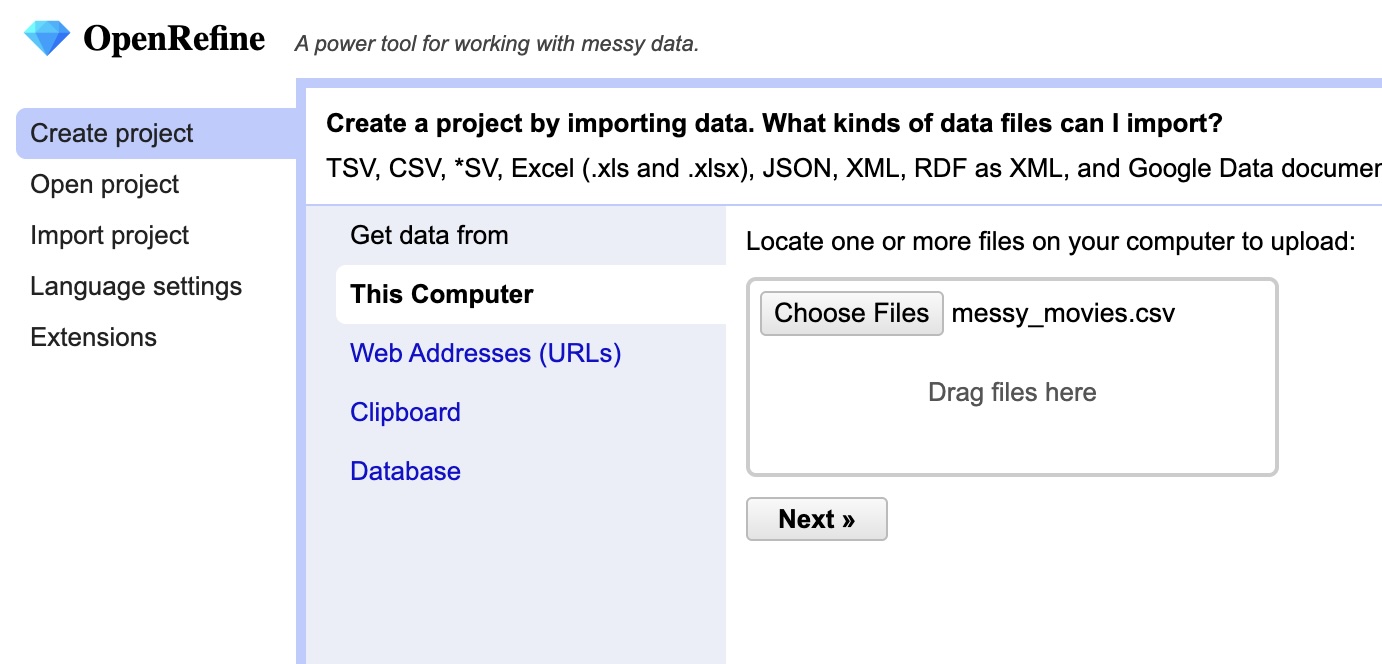
Click on Create Project and then on This Computer. From there, click on Choose Files and navigate to the messy_movies.csv file you downloaded earlier, and finally click Next >> to upload the data into OpenRefine.
After uploading, OpenRefine will show you a preview of the data, giving you a chance to correct any issues in the upload before creating your project.
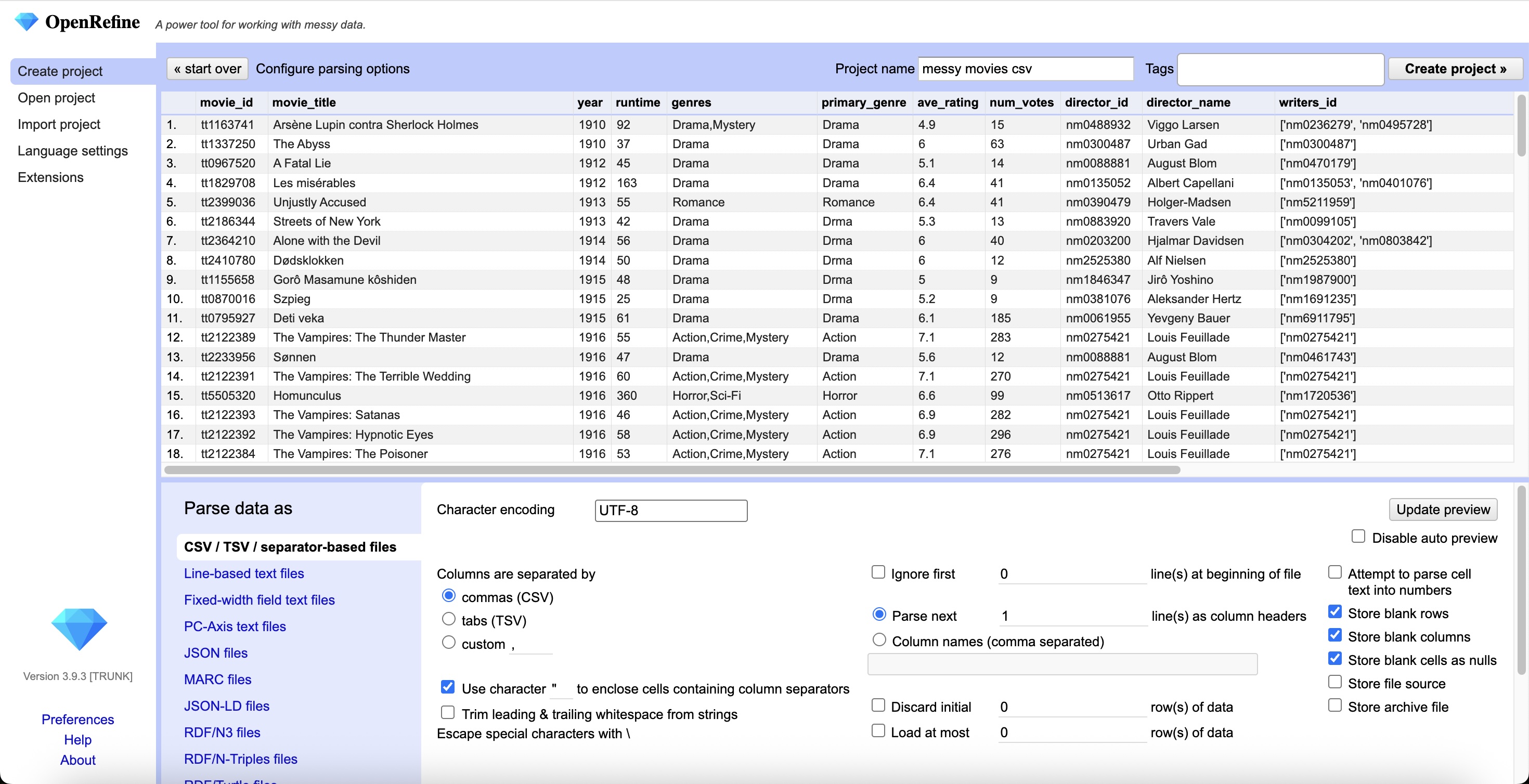
This is a great opportunity to double check that the file type was correctly identified, that your data was correctly parsed, and that all your variables are correctly titled.
If everything loks right to you, you can click the Create project >> buton in the upper right corner. You now have a OpenRefine project!