Crashcourse: Using the shell.
Before we dive into how to do analyses using R on high-performance computing clusters, let's start with a crashcourse in HPC and the shell.
What is high-performance computing?
High-performance computing (also known as supercomputing) is a form of computing that uses multiple, linked, powerful CPUs/GPUs to handle fast, more intense, and larger processing. The principle tool for HPC is the computing cluster.
Key terms:
- Core: One processing unit (CPU or GPU)
- Node: basically a computer (processors, memory, hard disc...) without all the accessories
- Cluster: collection of many connected nodes
- Rack: The box holding the cluster together
The Digital Research Alliance of Canada provides access to HPC clusters to Canadian researchers free of charge. For more information about how to access these and other resources, please visit the Alliance's documentation.
Using the shell.
Basically, the shell is the program that lets you interact with the computer behind the click and point interface we all use. The application we use to access the shell differs across operating systems:
- On Mac and linux machines, use the 'Terminal' to access the shell
- On newer Windows computers (version 10 or above), you can access the shell through the 'Command Prompt' application
- On older Windows computers, you will need to download specialized software to access the shell, such as the free version of MobaXterm.
Once you open the terminal, you will seem the command prompt. The prompt itself can be customized, and will look different based on your operating system. It is called a prompt because it is waiting (or, prompting) you to enter a command.
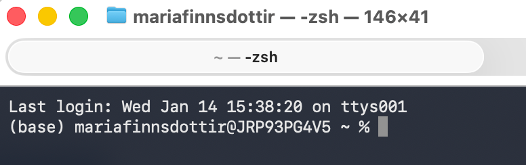
To use the shell, we type in commands, which the program then interprets. For example, if we type in whoami, it returns our username:
What is happening here?
- The terminal takes this string of characters “whoami” and looks in a special set of directories on your computer called the PATH for any files that match the string
- If it finds a match, run the file as a program
- whoami is recognized as a program
- That program then returns a result based on how it was programmed
If, however, we type a command that the program does not recognize, it will return an error.
The correct way to find 'where we are,' so to speak, is to print the working directory. We do this using the pwd command.
Mac and Linux users will see the pwd command return the current working directory:
Windows users will get a 'command not found' error here as well, because the original operating system programmers named the command cd (current directory) instead. If you’re working on a Windows computer, type in cd now, and the shell should return your current working directory.
Even with the differences between operating systems, typically, you can do the same things. Once we log into the remote system, everyone will see the same thing and will use the same commands.
Note
You can navigate through your previous commands using the up and down arrow buttons. You can also view a list of previous commands by running the command history.
Logging into the HPC cluster.
In order to log into one of the Alliance's clusters, we need to use a secure shell remote login client; the command for this is ssh. The basic structure of the command is:
The arguments in this command are (1) the username you've been assigned in the remote system, and (2) the URL/address of the system you are trying to connect to. To log in to an Alliance cluster, you will use your CCDB username and the address of one of the clusters. For example, if user000 were to log in to the Fir cluster, they would use the following ssh command:
For step-by-step video on logging into the Alliance's clusters, click here.
The first time you log in to a system, you will get a warning message with a fingerprint challenge alerting you that your computer doesn't recognize the key fingerprint of the remote system. For example, here is a fingerprint challenge I encountered logging into a workshop cluster for the first time:
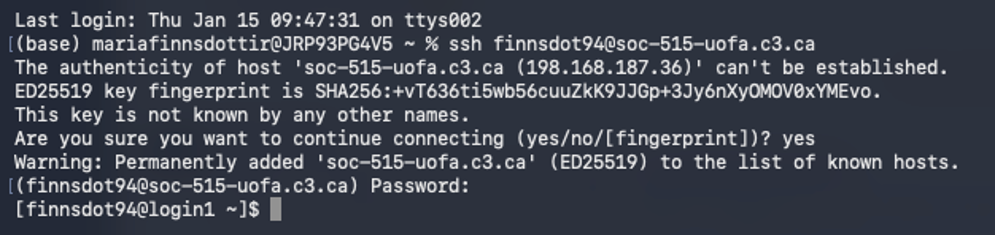
Reasons you might see a fingerprint challenge when logging in:
- This is your first connection with the specific cluster.
- You have removed the cluster address entry from your computer’s ~/.ssh/known_hosts file. This file contains the key fingerprints of remote systems you have previously connected to. When you start an SSH session, ssh checks the key fingerprint in this file to the one presented during an SSH connection attempt. If they are different, it will ask you to confirm the connection attempt.
- The servers ssh configurations have been updated, causing the key fingerprint to change. Before confirming the connection, contact the server administrators to confirm the update before continuing. The Alliance cluster key fingerprints are available for comparison on the technical documentation wiki SSH Security Improvements page.
- A bad actor has created an on-path cyberattack to capture your username and password for future use.
Type yes to continue connecting to the remote system only if reasons 1, 2, or 3 explain why you are seeing the challenge message.
When you type your password in, you will not see anything appear on the screen: your password will not be printed, nor will you see any key stroke indicators like dots or asterisks. This means you need to be extra careful typing your password - entering an incorrect password more than a few times will cause the system to block your connection attempts for some period of time before you can try again.
Using the Alliance clusters.
The Alliance clusters use multifactor authentication for logging in, meaning that you will need to have it set up before trying to connect to a cluster.
Working in the remote system shell.
The first thing you will notice is a change to the prompt in your terminal, indicating that you are on a different system. Your prompt should now display your username, the remote system's hostname, the current working directory, and then a prompt symbol.
Above, you can see that my name in this remote system is finnsdot94 and that I am currently connected to the login1 node (the first node on the cluster) and working in the highest-level working directory (my home directory).
Now, let's see what else is in our working directory. To list the files and folders in your working directory, use the command ls. Since we haven't added any files or folders yet, you should just see the default project and scratch directories.
The ls command can be modified to give you more informaiton with a number of options, such as -a which will include hidden entities, or -l which will provide a more detailed output. These options can also be combined, like below:
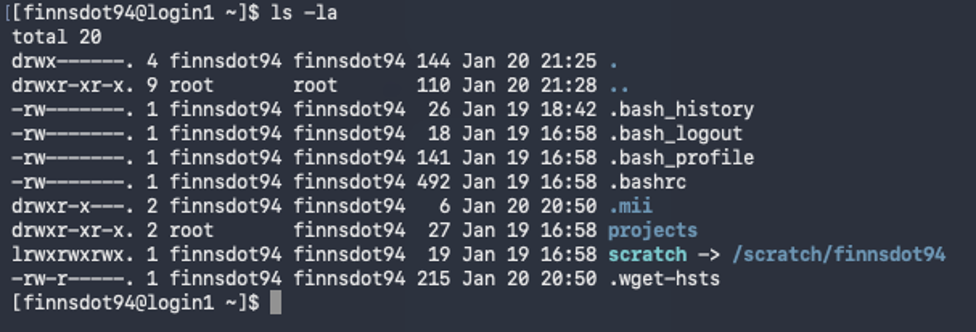
For information about all the options available with a command, type the command followed by --help and hit enter.
Finally, you can navigate between directories using the command cd which here means 'change directory'. To move into another directory, type the command cd followed by the cane of the directory you'd like to move into. Here, I'm using cd to move into projects:
You'll notice that now the wokring directory location in my prompt has changed from ~ to projects. You can move back up to the home directory by using the command cd ..
Navigating the file system.
File systems in our computer are best thought of as hierarchical or nested systems. Our home working directory is the highest level, with every other directed nested inside.
You can move across multiple levels with one cd command, so long as you specify the file path. So, to move down two levels, you would need to use cd folder/subfolder or to move up two levels, you'd use cd ../..
Exiting the remote system is easy: just type exit in the terminal and hit enter.