Analysing data in RStudio.
Now that we have our RStudio set up, we need to upload our data. There are several ways to upload data into the cluster under your account:
- Data can be moved into the cluster using Globus. Here's a video explaining how.
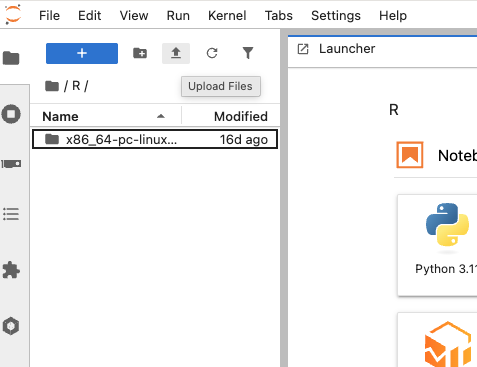
- You can import data directly into JupyterHub in your broswer. After launching a server, with the JupyterLab user interface, select the upload files button and open the desired file in your finder.
- Using a secure copy protocol, or
stp.
The scp command follows the structure scp <file start location> <file end location> whether you are moving data on to the remote server from your computer, or from the remote server on to your computer. When the file location is on the remote server, it must start with <username>@<remote server address>: and then the file location on the server.
You should already have the nlsc_data.csv downloaded. My downloaded data is in my downloads folder, at the file path ./Downloads/nlsc_data.csv. I plan to save it in my home directory on the cluster (represented by the tilde ~). So, to move the data, run the following command (replacing the username and file paths as appropriate):
Once that is complete, you can navigate back to your RStudio session in your browser. Your data should now be visible in the Files tab in the lower right-hand pane.
About the data.
In this workshop, we're using data from the National Longitudinal Survey of Older Men, 1966-1990. You can download it here. Specifically, we'll be working with the following variables:
- ID
- Age
- Race
- Marital status
- Urban/rural residence
- Highest grade attained
- Housing
- Family income
- Children
Here is a codebook of the data excerpt we're using.
Citation: Bureau of Labor Statistics, U.S. Department of Labor. National Longitudinal Survey of Older Men, 1966-1990 (rounds 1-13). Produced and distributed by the Center for Human Resource Research (CHRR), The Ohio State University. Columbus, OH: 1999.
Using this data, we're going to investigate the age-old relationship between education and income. To do this, we're going to run a linear regression of income on education, controlling for various sociodemographic factors. But first, we need to set up our working environment. Once in RStudio, start by setting your working directory to be the R folder, and by creating output folders for your data and figures.
getwd()
setwd('R')
getwd()

#setting up folders
dir.create('data_output')
dir.create('fig_output')
dir.create('table_output')
If not all your new folders show up when you run the lines, try refreshing the Files pane.
We'll save our model output, modified data, and plots in these folders. Next, load the libraries we'll be using. Unlike with the install.packages function, we cannot feed libraries in as a list.
After loading the various libraries we'll use, load in your data as "data" and inspect it. Since our data is in home directory, and we are working in the R folder, you'll need to start your file path with .. to represent the directory above.
One option for inspecting our data is to use the str() function, which will return informaiton on the structure of the data frame, as well as on the class, length, and content of each column (variable). You can also call head() and tail() to look at the first and last six rows of the data frame.
Next, call View(data) and scroll through the data window that pops up. Remember: R is case sensitive, so you must type View, not view.
You should see that our data includes some values that don't make sense, such as income values of -2 and -4. This is because missing values are being represented as -2 and -4 in our dataset. Before we do any more analyses, we'll need to replace those with NA values. To do this, we will use functions from the naniar package. First, let's replace the missing values in the income variable. We're going to assign our data to a new data frame, just this one time, to preserve the original data.
In the code above, we supply arguments to the replace_with_na function that specify the variable to be edited and the values to be replaced. We then pipe that function into the data frame, and assign it to a new data frame (to preserve the original data).
The naniar package also has a function that allows us to replace a particular value with NA across an entire data frame:
In this code, we use the function replace_with_na_all and supply it with the conditional argument replacing any variable (represented by ~.x) value of -4 with NA. We then pipe it into the same modified data frame.
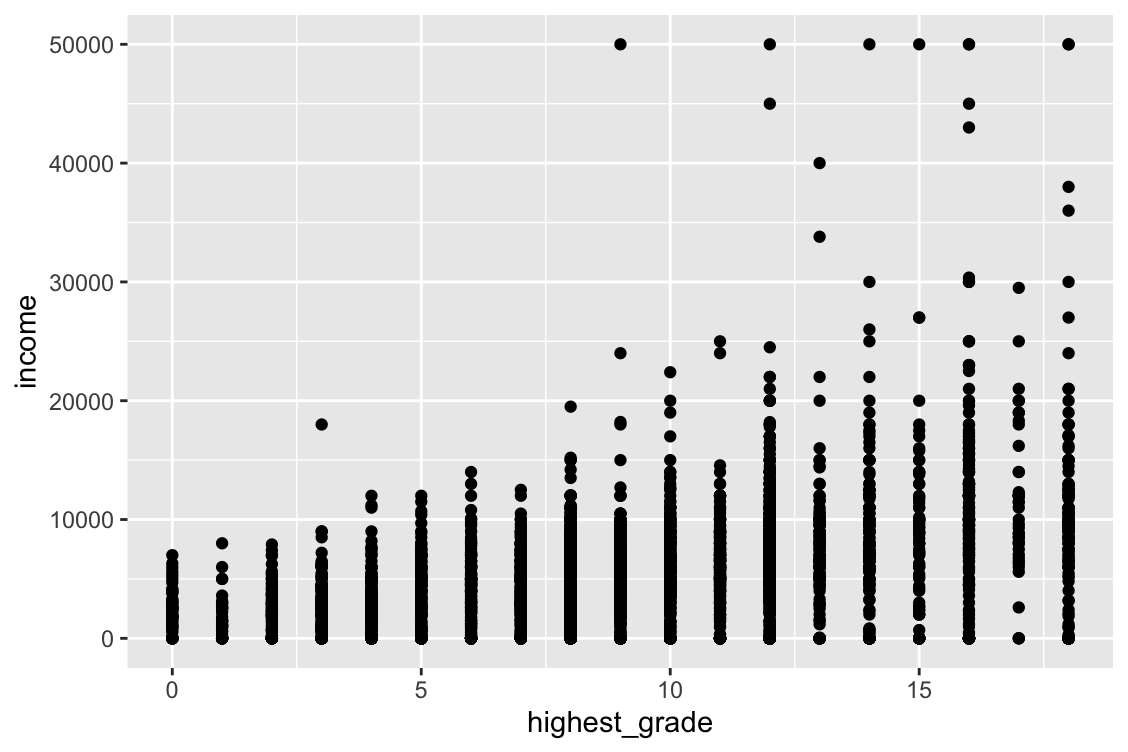
Next, let's make a scatterplot from our cleaned data to visually assess the relationship between education and income using ggplot. Let's also save it to our fig_output folder.
data2 %>%
  ggplot(aes(x=highest_grade, y=income))+geom_point()

ggsave("./fig_output/educ_inc_plot.png")
Let's further test this relationship by looking at the correlation between these two variables. We can do this using the cor() function and supplying it with arguments for our x and y variables. Given that we have missing data in our data frame, we will also need to tell it to use only complete observations, otherwise the function will return a value of NA. Remember that you can also go to the "Help" tab in RStudio to learn more about individual packages or functions.
This function returns a correlation of 0.380902, indicating a moderate positive relationship between education and income - just as we saw in the scatterplot.
Taking this another step further, let's now run a linear regression of income on education to test the statistical significant of the relationship. We do this with the lm() function in the stats package. The basic structure of a linear regression in R is model <- lm(x ~ y, data=data).
What do the results tell us about the relationship between income and education?
Obviously, the relationship between these things is more complicated. So, let's try adding some control variables to see how race, age, rural residence, and marital status might influence the effect of education on income. Before we do that, we'll need to recode some of our categorical variables into dummy variables. We can do this using the mutate function in dplyr, which allows us to preserve the original variable. First, let's recode race and marital status into dummies for white and married:
data2 <- data2 %>%
  mutate(white = recode(race,
                        1==1,
                        2==0,
                        3==0))

data2 <- data2 %>%
  mutate(married = recode(marital,
                          1==1,
                          2==1,
                          3==0,
                          4==0,
                          5==0,
                          6==0))
As shown above, mutate can be combined with a recode function to recode the values of a variable one by one. However, this can be a bit cumbersome when dealing with a variable with multiple possible values. In these cases, case_when comes quite in handy. Let's now use case_when to recode residence and children. In this case, we'll recode them to test whether rural residence and having a large family impact the relationship between education and income.
data2 <- data2 %>%
  mutate(rural = case_when(
    residence == 8 ~ 1,
    TRUE ~ 0))

data2 <- data2 %>%
  mutate(child5 = case_when(
    children >= 5 ~ 1,
    TRUE ~ 0))
Now, we can put these into our model. We can build on the basic linear model structure in R by adding control variables behind the independent variable.
model.2 <- lm(income ~ highest_grade + age + married + white + rural + child5, data=data2)
summary(model.2)
What does this regression tell us about the sociodemographic factors influencing the effect of education on income?
Unfortunately, the way R naturally displays regression output is quite messy. We can produce a much nicer output using the tidy function from the broom package. Let's call tidy on our second model, and then save that output as a csv file to our data output folder.
Let's plot out the coefficients now, using the coefplot package. We can save this plot using the 'Export' tool under the Plots tab in RStudio.