Using RStudio on HPC.
There are two ways to use R on the Alliance's HPC clusters. The first, and easiest, way is to access RStudio through JupyterHub in your browser window. This is a great way to test code, run visualizations, and do other light work, but bigger jobs should be submitted through the batch job system.
To access RStudio, start by locating the web address of the cluster you want to log in to (you can find the various URLs in the Alliance documentation). For example, if we want to use RStudio on Fir, we need to navigate to https://jupyterhub.fir.alliancecan.ca/
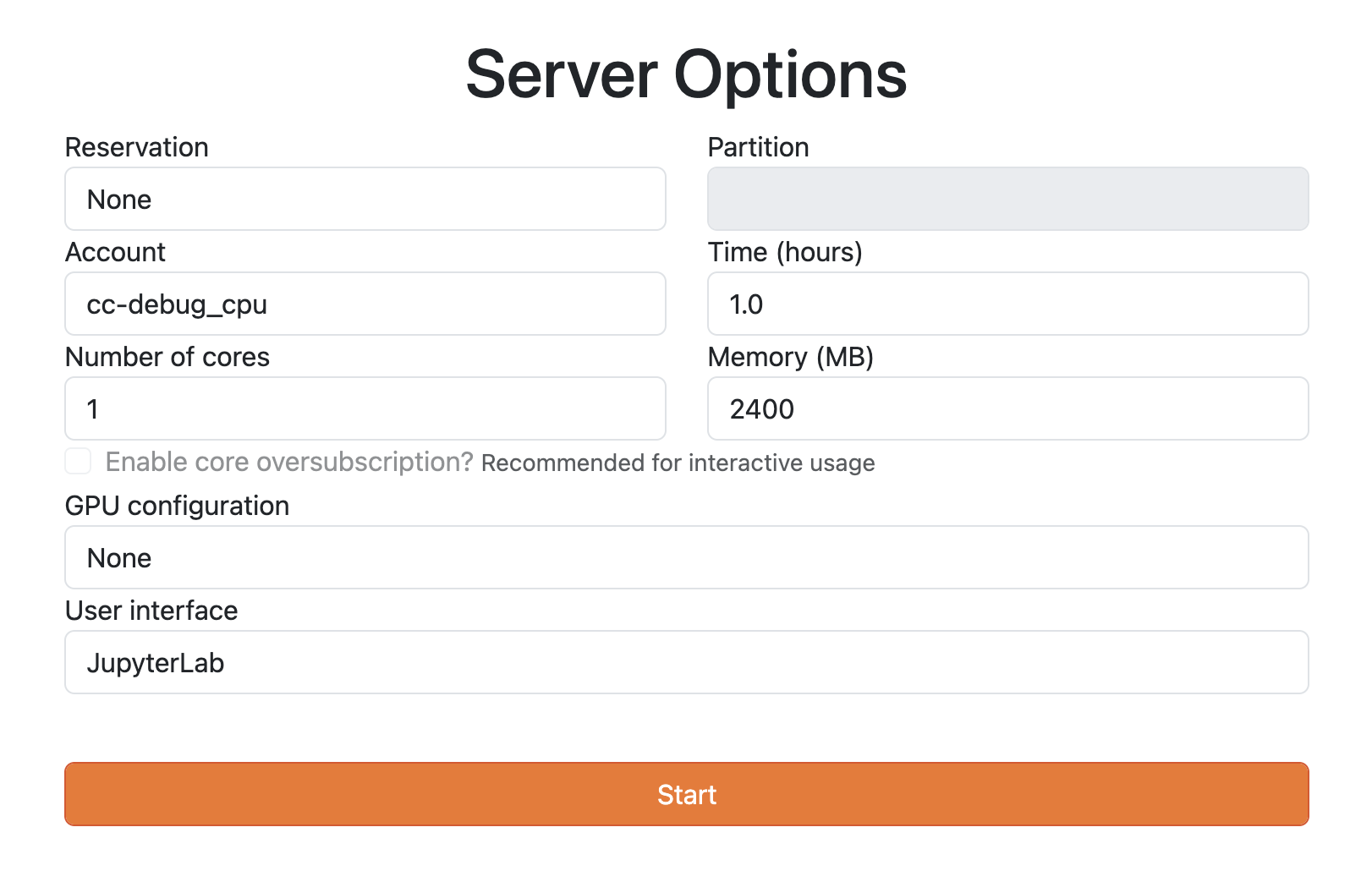
From there, you'll need to log in with your Alliance credentials and then start a server session. On the JupyterHub landing page, you'll have options for how long you want your session to last, how many cores you need, and how much memory you want. You will also be able to specify the GPU configuration and the user interface.
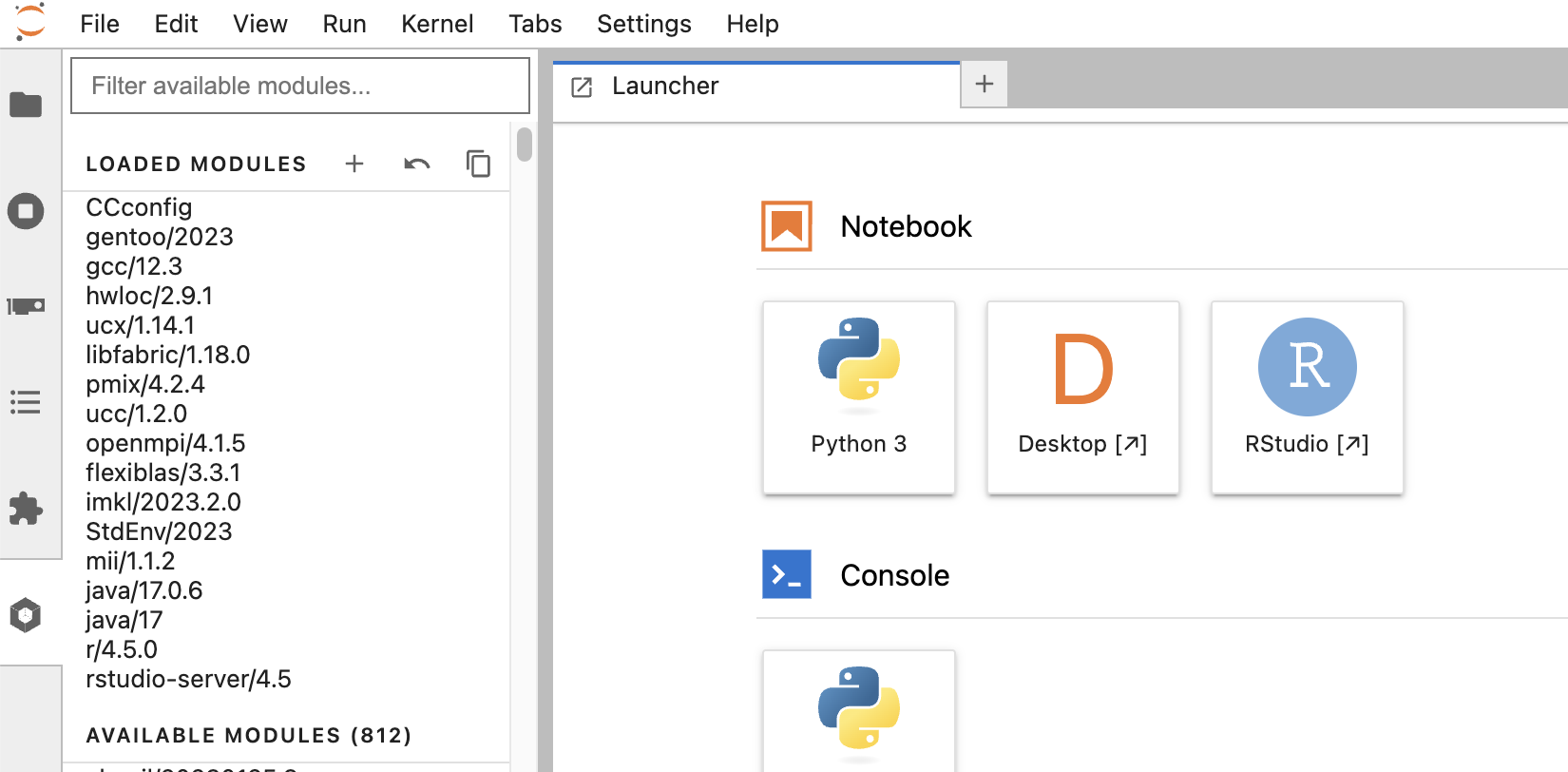
After you've started your session, if this is the first time you've used RStudio on this cluster, you'll need to load your chosen RStudie and R modules. Navigate to the menu on the left side of the screen, and click on the hexagon icon. From there, you can scroll down through the available modules and select r/4.5.0 and rstudio-server/4.5. Finally, click on the RStudio button that should now have appeared under the Notebook heading.
By default, there are only a small number of packages installed in RStudio on the clusters. The first time you log into RStudio on a cluster, you will need to install the packages you use through the shell/terminal (see more here). As the clusters are not hooked up to the internet, you cannot do this within RStudio.
Start by logging into the cluster you're using through the shell. Then, start an R session and choose the version of R that you've loaded in RStudio.
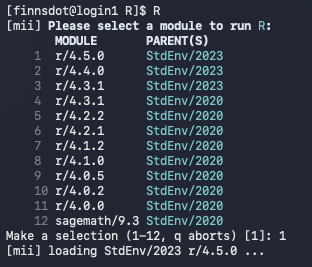
Alternatively, if you already now which version of R you want to load, you can run it as follows:
Once that is loaded up, you'll be able to install the required packages the normal way, by calling install.packages(). For this workshop, you'll need to install tidyverse, broom, coefplot, and naniar:
The first time you install a package through the shell, R will ask whether you want to create a personal library in your home directory - answer yes. You will then have to select a CRAN mirror to use (I generally use Canada (ON1) but you can pick whichever).
Once the package is installed (which may take several minutes) you'll need to restart your RStudio session in JupyterHub. Once you've done that, you should see tidyverse in your list of available packages in the packages pane.